How to Set Up a Self-Hosted Team Chat in Under 30 Minutes
Cloud chat tools are convenient — until you get the invoice, read the privacy policy, or face a data breach. Setting up your own **self-hosted team chat** used to require a Linux sysadmin and a weekend. With Chativa Pro, it takes 30 minutes and a Windows PC (or a Docker command). Here's exactly how to do it.
Prerequisites
Before you start, make sure you have:
- Windows 10/11 (64-bit) or any Linux/macOS with Docker installed
- 4 GB RAM minimum (8 GB recommended for production)
- 500 MB free disk space for the application (more for message history)
- A MongoDB instance — local, Docker, or free tier on MongoDB Atlas
- A Redis instance — local or Docker (required for real-time features)
- Optional: a Gemini API key if you want the built-in AI assistant
Step 1 — Download Chativa Pro
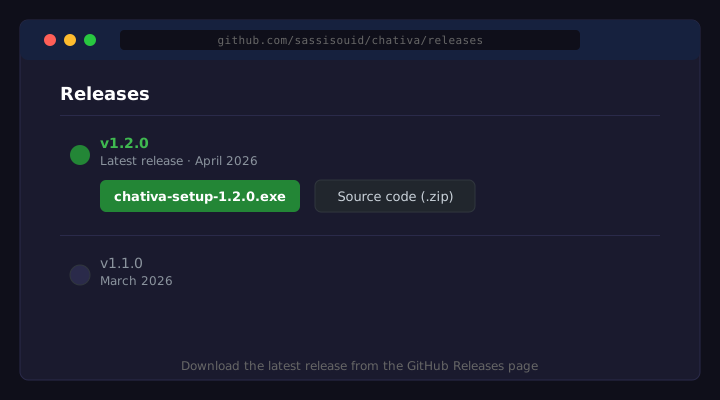
Head to the Chativa Pro GitHub repository{target="_blank" rel="noopener"} and grab the latest release. You have two options:
- Windows installer (.exe) — recommended for most users. Download
chativa-setup-x.x.x.exefrom the Releases page. - Docker Compose — recommended for Linux/macOS or production servers. Clone the repo and use the included
docker-compose.yml.
Step 2 — Run the Installer (Windows) or Docker Compose
Option A — Windows Installer
Double-click the .exe file and follow the setup wizard. The installer will:
- Install Node.js dependencies automatically
- Create a
chativaservice in Windows Services - Open the configuration wizard in your browser at
http://localhost:3000/setup
Option B — Docker Compose
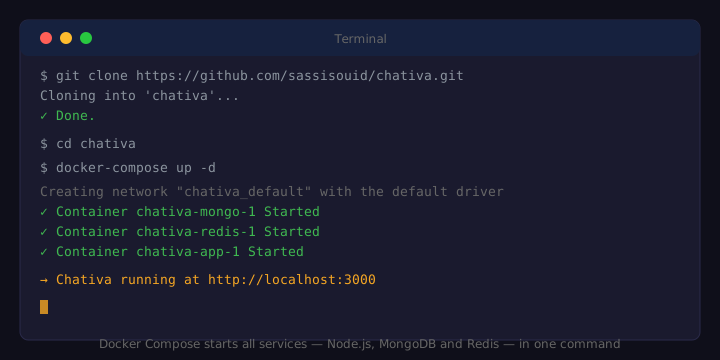
Clone the repository and start all services with a single command:
git clone https://github.com/sassisouid/chativa.git
cd chativa
docker-compose up -d
Docker will pull the Node.js, MongoDB and Redis images and start everything automatically. The app will be available at http://localhost:3000.
Step 3 — Configure the Setup Wizard
Open http://localhost:3000/setup in your browser. The guided wizard will ask for:
- MongoDB URI — e.g.
mongodb://localhost:27017/chativaor your Atlas connection string - Redis URL — e.g.
redis://localhost:6379 - App URL — the public URL where your server will be accessible (e.g.
https://chat.yourcompany.com) - Admin email & password — your first admin account
- Gemini API key (optional) — for the built-in AI assistant
http://192.168.1.10:3000. Team members on the same network can access it directly.
Step 4 — Create Your Admin Account
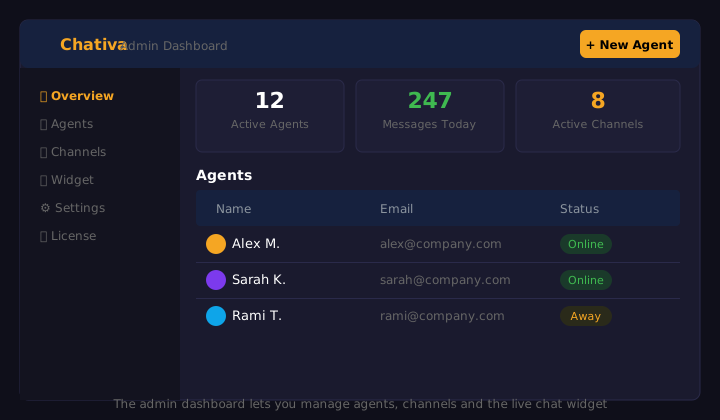
After the wizard completes, you'll be redirected to the admin dashboard. Log in with the credentials you set in Step 3. From here you can:
- Create agent accounts for your team members
- Set up channels and projects
- Configure the live chat widget for your website
- Upload your company logo (Pro license)
Step 5 — Invite Your Team
Go to Settings → Agents and create accounts for your team members. Each agent gets a login URL, username and password. They can access Chativa Pro from:
- Any browser at your server URL
- The Electron desktop app (Windows/macOS/Linux)
- The mobile-responsive web interface
Step 6 — Send Your First Message
Log in as an agent, open a channel and send a message. You'll see it appear in real time for all connected team members. End-to-end encryption is active by default — your private server chat is already secure.
Step 7 — (Optional) Activate the Pro License
If you purchased the Pro license, go to Settings → License and enter your license key. This unlocks white-label branding, removes the "Powered by Chativa" badge, and enables commercial use rights.
Conclusion
You now have a fully functional self-hosted team chat running on your own infrastructure. Real-time messaging, HD video calls, E2EE and an AI assistant — all without paying a monthly subscription or handing your data to a third party.
The free edition covers everything most teams need. If you want white-label branding, commercial use rights and priority support, the Chativa Pro license is a one-time $79 investment that pays for itself in the first month compared to Slack.
Ready to deploy?
Get Chativa Pro running on your server today — free forever, or upgrade to Pro for white-label and commercial use.